VSCode Extension
Full language support for Visual Studio Code.
Download
The extension is available for download on GitHub Releases. It is not yet published to the VSCode Marketplace.
Features
- Live Panel: Real-time output preview as you type, with syntax-highlighted results, generated JS, and structure analysis.
- Syntax Highlighting: Complete highlighting for
.morphqlfiles andmorphQLtagged templates in JS/TS. - Diagnostics: Real-time syntax error detection underlined directly in the editor.
- Hover Documentation: Hover over keywords and functions to see usage details inline.
- Execute Queries: Run transformations directly within the editor.
- Snippets: Type
morphql-to access common patterns.
Installation
👉 Download from GitHub Releases
- Download
morphql-vscode-{version}.vsixfrom the latest release - Open VSCode
- Press
Cmd+Shift+P(Mac) orCtrl+Shift+P(Windows/Linux) - Run: Extensions: Install from VSIX...
- Select the downloaded
.vsixfile
Live Panel
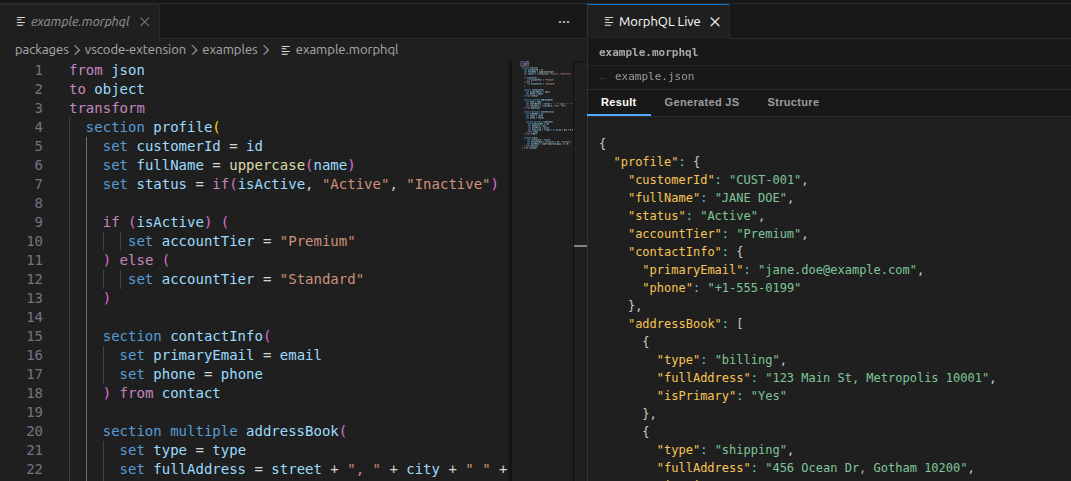
The Live Panel is the most convenient way to work with MorphQL. It opens a side panel that updates in real time as you type, showing the transformation output, the generated JavaScript, and the data structure analysis.
Opening the Panel
You can open the Live Panel in three ways:
- Click the preview icon (◫) in the editor title bar when a
.morphqlfile is active - Right-click inside a
.morphqlfile → MorphQL: Open Live Panel - Press
Ctrl+Shift+P/Cmd+Shift+P→ search MorphQL: Open Live Panel
The panel opens to the side and stays in sync with the active .morphql file automatically. Switching between .morphql files updates the panel; switching to other file types leaves the last result visible.
Source Data File
The Live Panel reads source data from a companion file — a file with the same base name as your .morphql query but a different extension (e.g. invoice.json for invoice.morphql).
Auto-detection: when you open a .morphql file, the panel automatically looks for a matching file in the same directory. If multiple files match (e.g. invoice.json and invoice.xml), the first one alphabetically is used.
Changing the source file: use the change button in the panel toolbar to open a file picker and select any file. Your choice is saved in .morphql-extension/panel-settings.json in the workspace root and restored on next open.
Opening the source file: click the open button next to the source file name to open it in a standard editor tab. Edits saved there are reflected in the panel immediately.
Working without a source file
If no source file is found, the panel runs the query against an empty object {}. You can still observe the generated JavaScript and the output structure.
Tabs
| Tab | Contents |
|---|---|
| Result | The transformation output, syntax-highlighted as JSON, XML, or plain text depending on content |
| Generated JS | The JavaScript function compiled from your query, with syntax highlighting |
| Structure | An expandable tree showing the inferred input and output data structures |
Status Indicators
The toolbar shows the current query file name and a status badge:
- OK (green) — the last compilation and execution succeeded
- Error (red) — a compilation or execution error occurred; the Result tab shows the error message
- Idle — no
.morphqlfile is active
Diagnostics
Syntax errors in your .morphql file are detected in real time and shown as red underlines directly in the editor, just like TypeScript errors. Hover over the underlined text to read the error message.
Hover Documentation
Hover over any MorphQL keyword or function to see a description and usage example in a tooltip. This works both in .morphql files and inside morphQL tagged template literals in TypeScript/JavaScript.
Execute Commands
For quick one-off runs without the Live Panel, three execution commands are available from the right-click context menu or the command palette:
| Command | Description |
|---|---|
| MorphQL: Execute with Input Data | Opens an input box — paste JSON or XML directly |
| MorphQL: Execute with Clipboard Data | Runs the query using whatever is on your clipboard |
| MorphQL: Execute Selection | Select a query string in a JS/TS file and execute it immediately |
Results are shown in the MorphQL Output panel at the bottom of the editor, including compile time, execution time, and the formatted output.
Snippets
Type morphql- in a .morphql file (or in a JS/TS file for embedded queries) to trigger snippets:
| Prefix | Expands to |
|---|---|
morphql-transform | Basic transform block |
morphql-section | section block skeleton |
morphql-if | if / else conditional block |
Embedded Queries in JS/TS
The extension also highlights MorphQL syntax inside tagged template literals:
import { morphQL } from "@morphql/core";

const query = morphQL`
  from json to json
  transform
    set fullName = firstName + " " + lastName
`;
The morphQL tag is a no-op at runtime — it exists purely to let the extension identify and highlight the embedded query. Diagnostics and hover docs work inside these templates too.